<!DOCTYPE html>
	<html lang="vi" xmlns="http://www.w3.org/1999/xhtml" prefix="og: http://ogp.me/ns#">
	<head>
<title>Hướng dẫn thiết lập chương trình tự động khởi động cùng windows</title>
<meta name="description" content="Hướng dẫn thiết lập chương trình tự động khởi động cùng windows - Savefile - Tin Tức -...">
<meta name="author" content="PHAN MEM THIEN HA">
<meta name="copyright" content="PHAN MEM THIEN HA [phamhuy842005@gmail.com]">
<meta name="robots" content="index, archive, follow, noodp">
<meta name="googlebot" content="index,archive,follow,noodp">
<meta name="msnbot" content="all,index,follow">
<meta name="generator" content="NukeViet v4.0">
<meta name="viewport" content="width=device-width, initial-scale=1">
<meta http-equiv="Content-Type" content="text/html; charset=utf-8">
<meta property="og:title" content="Hướng dẫn thiết lập chương trình tự động khởi động cùng windows">
<meta property="og:type" content="website">
<meta property="og:description" content="Savefile - Tin Tức - https&#x3A;&#x002F;&#x002F;thienhashop.com&#x002F;news&#x002F;savefile&#x002F;huong-dan-phan-mem&#x002F;huong-dan-thiet-lap-chuong-trinh-tu-dong-khoi-dong-cung-windows-123.html">
<meta property="og:site_name" content="PHAN MEM THIEN HA">
<meta property="og:url" content="https://phanmemthienha.com/news/huong-dan-phan-mem/huong-dan-thiet-lap-chuong-trinh-tu-dong-khoi-dong-cung-windows-123.html">
<link rel="shortcut icon" href="https://thienhashop.com/uploads/logo-shop-thien-ha-5.png">
<link rel="canonical" href="https://phanmemthienha.com/news/huong-dan-phan-mem/huong-dan-thiet-lap-chuong-trinh-tu-dong-khoi-dong-cung-windows-123.html">
<link rel="alternate" href="https://thienhashop.com/news/rss/" title="Tin Tức" type="application/rss+xml">
<link rel="alternate" href="https://thienhashop.com/news/rss/huong-dan-phan-mem/" title="Tin Tức - Hướng dẫn phần mềm" type="application/rss+xml">
<link rel="alternate" href="https://thienhashop.com/news/rss/huong-dan-noi-bo/" title="Tin Tức - Hướng dẫn nội bộ" type="application/rss+xml">
<link rel="alternate" href="https://thienhashop.com/news/rss/Doi-tac/" title="Tin Tức - Đối tác" type="application/rss+xml">
<link rel="alternate" href="https://thienhashop.com/news/rss/Tuyen-dung/" title="Tin Tức - Tuyển dụng" type="application/rss+xml">
<link rel="preload" as="script" href="https://thienhashop.com/assets/js/jquery/jquery.min.js">
<link rel="preload" as="script" href="https://thienhashop.com/assets/js/language/vi.js">
<link rel="preload" as="script" href="https://thienhashop.com/assets/js/global.js">
<link rel="preload" as="script" href="https://thienhashop.com/themes/default/js/news.js">
<link rel="preload" as="script" href="https://thienhashop.com/themes/popovleather/js/main.js">
<link rel="preload" as="script" href="https://thienhashop.com/themes/popovleather/js/bootstrap.min.js">
<link rel="StyleSheet" href="https://thienhashop.com/assets/css/font-awesome.min.css">
<link rel="StyleSheet" href="https://thienhashop.com/themes/popovleather/css/bootstrap.min.css">
<link rel="StyleSheet" href="https://thienhashop.com/themes/popovleather/css/style.css">
<link rel="StyleSheet" href="https://thienhashop.com/themes/popovleather/css/style.responsive.css">
<link rel="StyleSheet" href="https://thienhashop.com/themes/default/css/news.css">
<link rel="StyleSheet" href="https://thienhashop.com/assets/css/popovleather.vi.0.css?t=87">
<style>
	body{background: #fff;}
</style>
	</head>
	<body>
<div id="print">
	<div id="hd_print">
		<h2 class="pull-left">PHAN MEM THIEN HA</h2>
		<p class="pull-right"><a title="PHAN MEM THIEN HA" href="https://thienhashop.com/">https://thienhashop.com</a></p>
	</div>
	<div class="clear"></div>
	<hr />
	<div id="content">
		<h1>Hướng dẫn thiết lập chương trình tự động khởi động cùng windows</h1>
		<ul class="list-inline">
			<li>Thứ sáu - 12/04/2019 22:08</li>
			<li class="hidden-print txtrequired"><em class="fa fa-print">&nbsp;</em><a title="In ra" href="javascript:;" onclick="window.print()">In ra</a></li>
			<li class="hidden-print txtrequired"><em class="fa fa-power-off">&nbsp;</em><a title="Đóng cửa sổ này" href="javascript:;" onclick="window.close()">Đóng cửa sổ này</a></li>
		</ul>
		<div class="clear"></div>
		<div id="hometext">
			Hướng dẫn thiết lập chương trình tự động khởi động cùng windows
		</div>
				<div class="imghome">
			<img alt="Hướng dẫn thiết lập chương trình tự động khởi động cùng windows" src="https://thienhashop.com/uploads/news/2019_04/windows-task-scheduler-thiet-lap-ung-dung-tu-dong-chay-2.jpg" width="460" class="img-thumbnail" />
		</div>
		<div class="clear"></div>
		<div id="bodytext" class="clearfix">
			<p><em>Bước 1</em>: Mở tính năng Windows Task Scheduler bằng cách nhấn vào nút <strong>Start </strong>và nhập vào <strong>Task Scheduler </strong>trong ô tìm kiếm, sau đó nhấn <strong>Enter</strong>. Giao diện chương trình sẽ được hiển thị cho bạn sử dụng.<br  />
<br  />
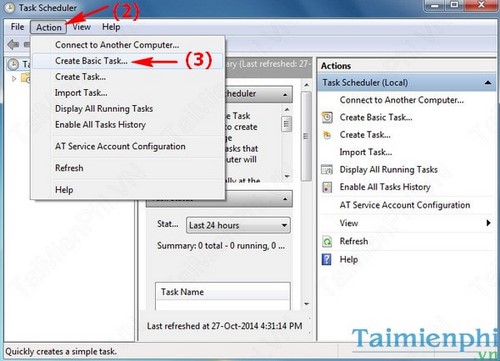
<em>Bước 2</em>: Trên giao diện vào <strong>Action</strong> --&gt;<strong>Create Basic Task...</strong></p>

<p><img alt="windows task scheduler thiet lap ung dung tu dong chay 2" class="lazy" data-original="http://imgt.taimienphi.vn/cf/Images/ntt/2014/10/windows-task-scheduler-thiet-lap-ung-dung-tu-dong-chay-2.jpg" height="361" src="https://thienhashop.com/uploads/news/2019_04/windows-task-scheduler-thiet-lap-ung-dung-tu-dong-chay-2.jpg" style="display: block;" width="500" /></p>

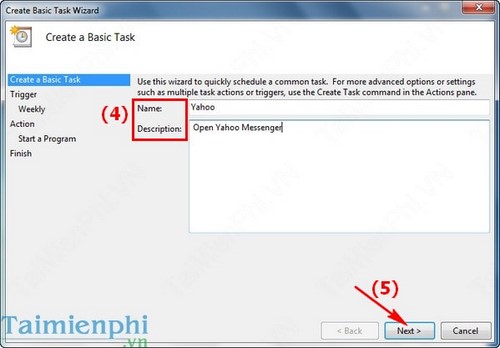
<p><em>Bước 3</em>: Điền vào mục <strong>Name</strong> (tên ứng dụng) và <strong>Descriptions</strong> (mô tả thêm). Sau đó nhấn <strong>Next</strong></p>

<p><img alt="windows task scheduler thiet lap ung dung tu dong chay 3" class="lazy" data-original="http://imgt.taimienphi.vn/cf/Images/ntt/2014/10/windows-task-scheduler-thiet-lap-ung-dung-tu-dong-chay-3.jpg" height="348" src="https://thienhashop.com/uploads/news/2019_04/windows-task-scheduler-thiet-lap-ung-dung-tu-dong-chay-3.jpg" style="display: block;" width="500" /></p>

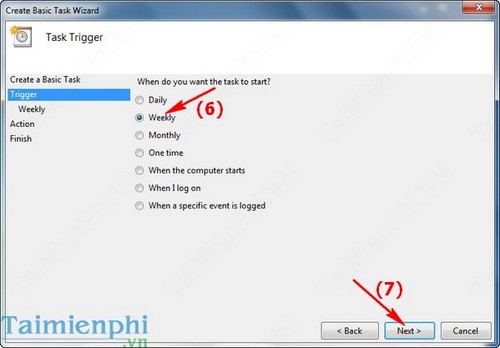
<p><em>Bước 4</em>: Xác định thời gian mở ứng dụng, ở đây chọn <strong>Weekly</strong> theo tuần, sau đó nhấn <strong>Next</strong></p>

<p><img alt="windows task scheduler thiet lap ung dung tu dong chay 4" class="lazy" data-original="http://imgt.taimienphi.vn/cf/Images/ntt/2014/10/windows-task-scheduler-thiet-lap-ung-dung-tu-dong-chay-4.jpg" height="348" src="https://thienhashop.com/uploads/news/2019_04/windows-task-scheduler-thiet-lap-ung-dung-tu-dong-chay-4.jpg" style="display: block;" width="500" /></p>

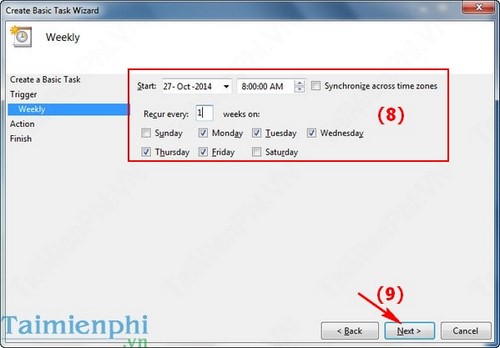
<p><em>Bước 5</em>: Chọn thời gian chi tiết để thực hiện tác vụ. Sau đó nhấn <strong>Next</strong></p>

<p><img alt="windows task scheduler thiet lap ung dung tu dong chay 5" class="lazy" data-original="http://imgt.taimienphi.vn/cf/Images/ntt/2014/10/windows-task-scheduler-thiet-lap-ung-dung-tu-dong-chay-5.jpg" height="348" src="https://thienhashop.com/uploads/news/2019_04/windows-task-scheduler-thiet-lap-ung-dung-tu-dong-chay-5.jpg" style="display: block;" width="500" /></p>

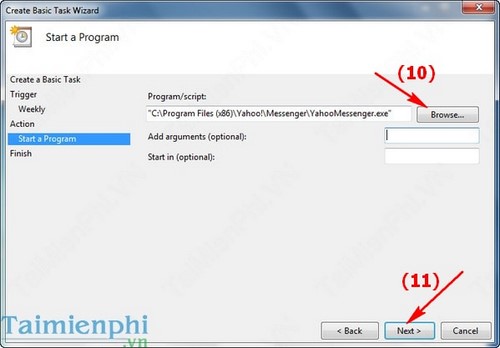
<p><em>Bước 6</em>: Chuyển đến mục <strong>Start a program</strong>, nhấn vào<strong> Browse</strong> và tìm đến đường dẫn chứa file chạy .exe của ứng dụng (ở đây là ứng dụng <a href="http://taimienphi.vn/download-yaho-messenger-13" target="_blank">Yahoo Messenger</a>. Cuối cùng nhấn <strong>Next</strong></p>

<p><img alt="windows task scheduler thiet lap ung dung tu dong chay 6" class="lazy" data-original="http://imgt.taimienphi.vn/cf/Images/ntt/2014/10/windows-task-scheduler-thiet-lap-ung-dung-tu-dong-chay-6.jpg" height="348" src="https://thienhashop.com/uploads/news/2019_04/windows-task-scheduler-thiet-lap-ung-dung-tu-dong-chay-6.jpg" style="display: block;" width="500" /></p>

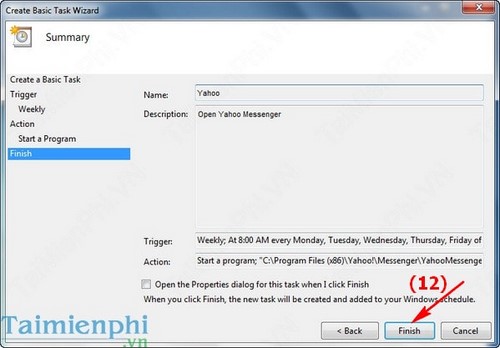
<p><em>Bước 7</em>: Nhấn <strong>Finish </strong>để kết thúc.</p>

<p><img alt="windows task scheduler thiet lap ung dung tu dong chay 7" class="lazy" data-original="http://imgt.taimienphi.vn/cf/Images/ntt/2014/10/windows-task-scheduler-thiet-lap-ung-dung-tu-dong-chay-7.jpg" height="348" src="https://thienhashop.com/uploads/news/2019_04/windows-task-scheduler-thiet-lap-ung-dung-tu-dong-chay-7.jpg" style="display: block;" width="500" /></p>

<p><span style="color:rgb(241, 255, 255);font-size:4px">http://thuthuat.taimienphi.vn/windows-task-scheduler-thiet-lap-ung-dung-tu-dong-chay-2760n.aspx </span><br  />
Vậy là bạn đã biết cách thiết lập các ứng dụng tự động chạy trong máy tính với chức năng Windows Task Scheduler rồi đó, nhờ đó ứng dụng được thiết lập sẽ tự khởi động theo thời gian mà bạn đã lên lịch.<br  />
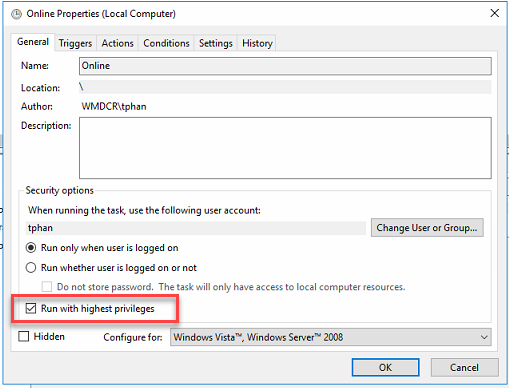
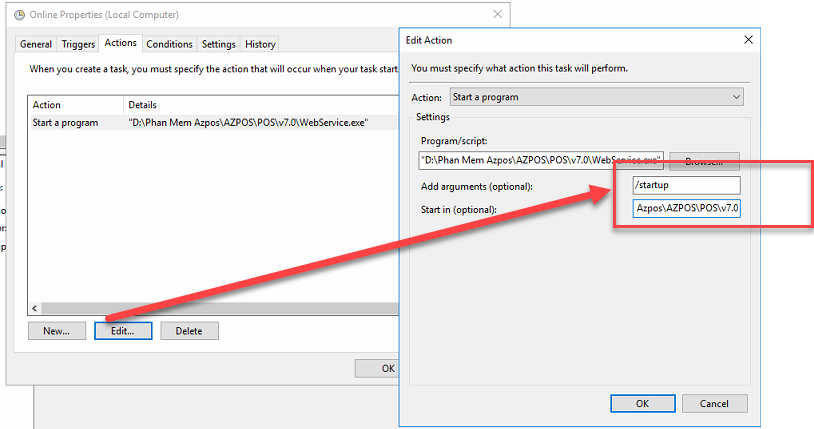
nhớ check vào Run highest...<br  />
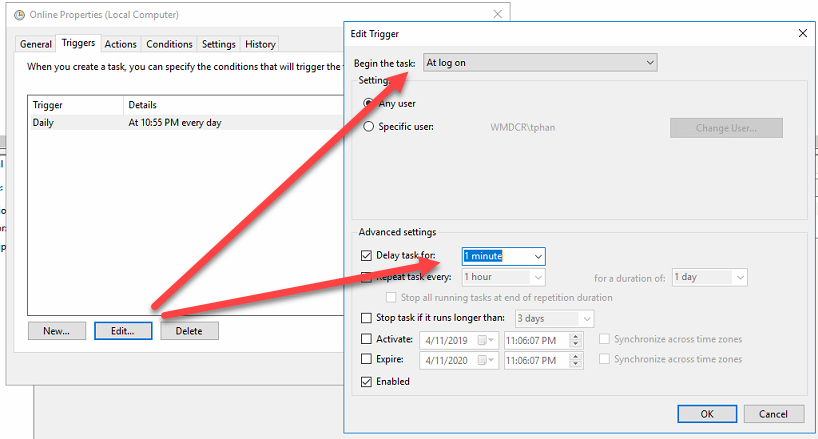
VỚI CHƯƠNG TRÌNH CỦA THIÊN HÀ<br  />
<img alt="huong dan khoi dong cung windows 10 pm thien ha 1" height="388" src="https://thienhashop.com/uploads/news/2019_04/huong-dan-khoi-dong-cung-windows-10-pm-thien-ha-1.png" width="509" /></p>
<img alt="huong dan khoi dong cung windows 10 pm thien ha 2" height="439" src="https://thienhashop.com/uploads/news/2019_04/huong-dan-khoi-dong-cung-windows-10-pm-thien-ha-2.png" width="818" /><br  />
<br  />
<img alt="huong dan khoi dong cung windows 10 pm thien ha 3" height="429" src="https://thienhashop.com/uploads/news/2019_04/huong-dan-khoi-dong-cung-windows-10-pm-thien-ha-3.png" width="814" /><br  />
<br  />
&nbsp;
		</div>
	</div>
	<div id="footer" class="clearfix">
		<div id="url">
			<strong>URL của bản tin này: </strong><a href="https://thienhashop.com/news/huong-dan-phan-mem/huong-dan-thiet-lap-chuong-trinh-tu-dong-khoi-dong-cung-windows-123.html" title="Hướng dẫn thiết lập chương trình tự động khởi động cùng windows">https://thienhashop.com/news/huong-dan-phan-mem/huong-dan-thiet-lap-chuong-trinh-tu-dong-khoi-dong-cung-windows-123.html</a>

		</div>
		<div class="clear"></div>
		<div class="copyright">
			&copy; PHAN MEM THIEN HA
		</div>
		<div id="contact">
			<a href="mailto:phamhuy842005@gmail.com">phamhuy842005@gmail.com</a>
		</div>
	</div>
</div>
        <div id="timeoutsess" class="chromeframe">
            Bạn đã không sử dụng Site, <a onclick="timeoutsesscancel();" href="https://thienhashop.com/#">Bấm vào đây để duy trì trạng thái đăng nhập</a>. Thời gian chờ: <span id="secField"> 60 </span> giây
        </div>
        <div id="openidResult" class="nv-alert" style="display:none"></div>
        <div id="openidBt" data-result="" data-redirect=""></div>
<div id="run_cronjobs" style="visibility:hidden;display:none;"><img alt="" src="/index.php?second=cronjobs&amp;p=f5Aqg6An" width="1" height="1" /></div>
<script src="https://thienhashop.com/assets/js/jquery/jquery.min.js"></script>
<script>var nv_base_siteurl="/",nv_lang_data="vi",nv_lang_interface="vi",nv_name_variable="nv",nv_fc_variable="op",nv_lang_variable="language",nv_module_name="news",nv_func_name="savefile",nv_is_user=0, nv_my_ofs=-4,nv_my_abbr="EDT",nv_cookie_prefix="nv4c_y8Y7D",nv_check_pass_mstime=1738000,nv_area_admin=0,nv_safemode=0,theme_responsive=1,nv_is_recaptcha=1,nv_recaptcha_sitekey="6LeSarIUAAAAAHRq6xkHwO6J0YYQOdMxgqKTXoL_",nv_recaptcha_type="image",nv_recaptcha_elements=[];</script>
<script src="https://thienhashop.com/assets/js/language/vi.js"></script>
<script src="https://thienhashop.com/assets/js/global.js"></script>
<script src="https://thienhashop.com/themes/default/js/news.js"></script>
<script src="https://thienhashop.com/themes/popovleather/js/main.js"></script>
<script src="https://thienhashop.com/themes/popovleather/js/bootstrap.min.js"></script>
</body>
</html>